
Choose column data types
When you add or edit a column, the Data Type field is a searchable picker over DeltaVault’s canonical type catalog.
Column creation does not live in the grid: on the Catalog the page header’s New split-button creates columns, and on a project’s or workspace’s Catalog page the page header shows New column while the Columns tab is active. The grid itself is for editing what already exists.
Open or rename a column from the grid
Section titled “Open or rename a column from the grid”In the columns grid the column name is a link:
- Single click the name to open its full editor, where you can change every field on the column.
- Double click the name to rename it right in the grid. The new name saves as soon as you leave the cell, so there is no Save button to press.
Search by any name you know
Section titled “Search by any name you know”Start typing and the picker matches both canonical names and their “known as” aliases:
| You type | You’ll find |
|---|---|
varchar, text, char | STRING |
int, smallint, tinyint | INTEGER |
guid, uniqueidentifier | UUID |
datetimeoffset, timestamptz | TIMESTAMP_TZ |
numeric, number | DECIMAL |
Each option shows its aliases underneath (“Known as: …”). Selecting always stores the canonical name: the alias is just how you found it.
Platform admins curate the canonical catalog and its aliases. See Manage data types.
Edit a type right in the grid
Section titled “Edit a type right in the grid”You don’t need to open a separate form to change a column’s type. In the columns grid, double-click the Data Type cell and a small editor opens right there with everything the type needs:
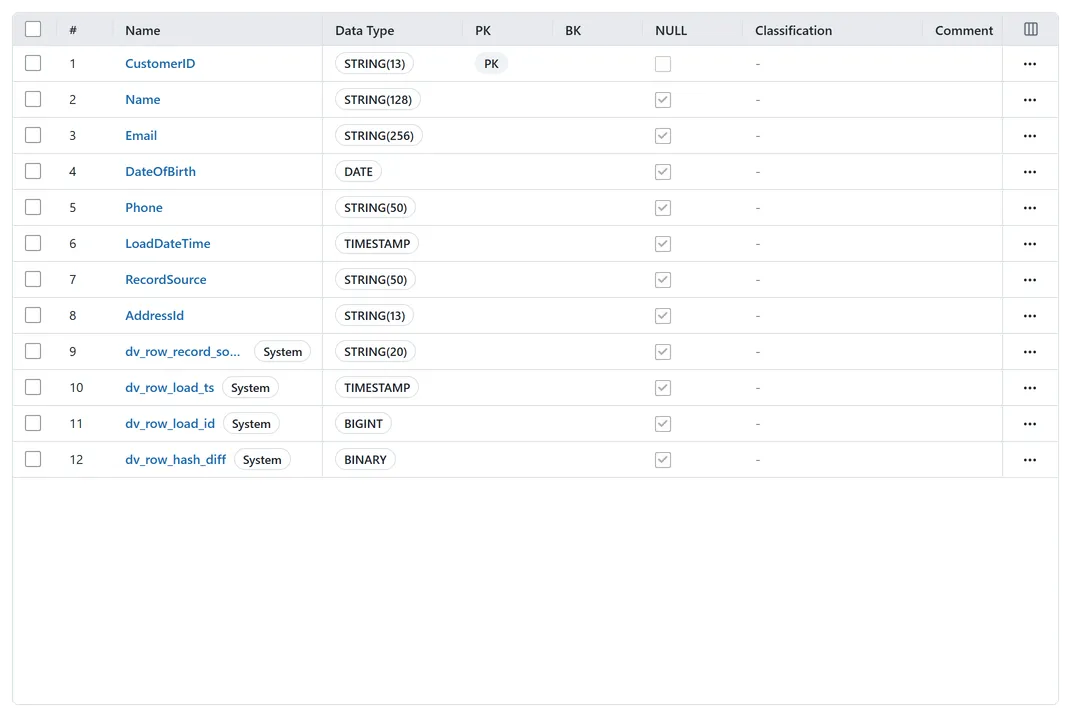 The columns grid: each row shows its canonical type, Primary key and Business key flags, and nullability.
- the same searchable type picker described above, and
- Length, Precision, Scale, and Element fields: only the ones the
selected type actually uses appear. For example,
STRINGshows Length,DECIMALshows Precision and Scale,ARRAYshows Element, andDATEshows none.
Element is the contained type of a collection. Pick ARRAY as the data type and
set Element to STRING, and the column reads as ARRAY<STRING>. The grid always
shows the complete type at a glance (STRING(60), DECIMAL(18,2), ARRAY<STRING>)
so you can see the length, precision, scale, or element without opening the cell.
The type and its length, precision, scale, or element are all part of the same edit, and they save together as soon as you leave the cell. Switching a column away from a collection type clears an Element you had set earlier, so the stored type always matches what you see.
The same editor backs the System columns grids in settings (both your layer system columns and the shared system-column catalog), so you set a system column’s type plus its length, precision, scale, or element the same way.
For how grid editing works in general, including selecting ranges, filling, and pasting from a spreadsheet, see Editing in grids.
Edit the transformation in the grid
Section titled “Edit the transformation in the grid”A column’s transformation is the SQL expression that derives its value. The Transformation column shows it in the grid by default, and you edit it the same way you edit a type: double-click the cell, type the expression, and leave the cell to save. If you hid the column earlier, open the column chooser and toggle it back on, the same as any other field.
Edits validate against your table’s dialect before anything saves, and the two kinds of problem are treated differently.
- A macro problem blocks the save. A macro the registry does not know, or one called
with the wrong number of arguments, reverts the cell and reports itself, beginning
Unknown macro(s):orWrong argument count:. Fix the expression and try again. - A function the dialect does not recognize is a hint, not a restriction. It does not
block anything and the expression saves as written, worded
Not in the known function list for dialect databricks: nosuchfn. This is a hint, not a restriction.The grid has nowhere to put a message it is not refusing the save over, so it stays silent: open the column in the Edit Column dialog to read the hint, where it sits under the editor in muted text and blocking problems sit above it in red.
So an unrecognized function name does land on the column. That is deliberate, because the known function list is a convenience rather than the dialect’s own grammar, and refusing a valid expression the list has not caught up with would be the worse failure.
Macros are legal inside the expression with the same @macro:name(...)
syntax the View Designer uses. For what the macro registry contains and how
arguments work, see Macro library.
A few behaviors to know:
- An empty cell shows a dash placeholder. Copying an empty cell copies nothing, not the dash.
- Clearing the cell does not clear the saved transformation: the grid saves nothing and the stored expression stays, the same as clearing the field in the column editor and saving.
- The single-click column editor carries the same Transformation field with the same validation, so the grid cell and the editor are two doors onto one field.
- Pasting rows to create new columns skips the Transformation column: paste fills name, data type, nullable, and comment only, and the confirm dialog discloses it, for example: “1 clipboard column had no creatable grid column and was ignored.”
Where the original source type lives
Section titled “Where the original source type lives”Columns that arrive through imports keep the exact source-system spelling (for
example tinyint(3) or datetimeoffset) as their source type alongside the
canonical type, so nothing about the source schema is lost when DeltaVault
normalizes to the canonical catalog. You’ll see it in the data dictionary wherever
the source type is shown.