
Table relationships
A table relationship is a foreign key: one or more columns on a child table that reference the key columns of a parent table. Relationships reach your catalog three ways, and all three produce the same record: imported from the source system, proposed by Discover keys and relationships, or drawn by you. Once recorded, a relationship drives view joins and Data Vault decomposition, so it is worth getting right.
Relationships are drawn as connectors on the catalog Canvas tab, the entity relationship diagram for a connection, catalog, or schema. The project and workspace Canvas tab draws them too, in its Relationships view; its Lineage view shows data flow instead, so a relationship you record while reading Lineage lands in the catalog and appears once you switch views. Wherever it was drawn, every relationship a table takes part in is listed on the table’s Relationships tab.
Draw a relationship on the canvas
Section titled “Draw a relationship on the canvas”On the catalog Canvas tab, right-click a table’s header and choose Add relationship. On a project or workspace canvas, right-click a table and choose Add relationship, or drag from one table’s connect handle onto another table to open the same dialog with both tables already filled in.
The dialog is titled New relationship from the table you started on.
- Pick the Other table. The list offers tables from the same catalog as the table you started on, sorted by name: a foreign key lives inside one catalog and its owning connection, so a drag onto a table in another catalog is refused. When nothing in the catalog qualifies, the picker says No tables in this catalog to relate to rather than offering an empty list.
- Read the direction sentence above the column rows. It names which table references which. If it has them the wrong way round, choose Swap.
- Fill in the column pairs. DeltaVault pre-fills a pair for every parent key column whose name matches a child column exactly, taking the parent’s primary key columns first and then its business key columns. Matching is exact on purpose: a wrong suggestion costs more than a blank row.
- For a foreign key that spans several columns, choose Add column pair and add a row per column. Use the x on a row to drop it. A column can appear in only one pair, and the dialog says so and blocks the save until you fix it.
- Choose Save.
Opened from a project or workspace canvas, the dialog also offers Suggest relationships before you select the other table: it runs relationship discovery scoped to that one table and the proposals arrive in the docked Ask AI pane for review. Runs launched from the catalog Canvas tab draw their candidates on that diagram as dashed edges as well.
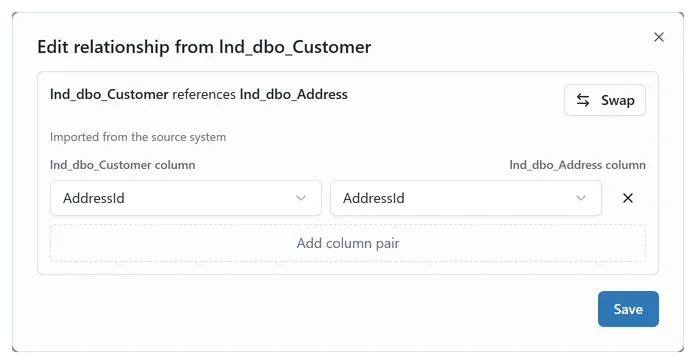 The dialog opened from the pencil on an existing relationship. The direction sentence names which table references which, with Swap beside it; the pair rows and Add column pair sit below. Opened on a new relationship instead, the Other table picker takes the place of the direction sentence and the pair rows appear once you have chosen the table.
Edit or remove from the table detail pane
Section titled “Edit or remove from the table detail pane”Open a table and choose the Relationships tab. It has two sections:
- References: relationships where this table holds the foreign key and points at another table.
- Referenced by: relationships where another table points at this one.
Each relationship is its own row, so two separate foreign keys from one table to the same parent read as two rows rather than one merged row. A row names the table at the other end, carries an Imported badge when the relationship came from a source system, shows the source constraint name where there is one, and lists a line per column pair.
- Edit relationship (the pencil) opens the same dialog you draw with, seeded on the relationship you clicked rather than on an arbitrary one between the two tables.
- Remove relationship (the trash) removes it and shows a Relationship removed message with Undo. Ctrl+Z, or Cmd+Z on macOS, does the same while that message is up.
- Add relationship, above the References list, starts a new one from this table.
On the main branch and for viewers the rows still render, without the add, edit, and remove controls: switch to a feature branch to make changes, as with every other write in DeltaVault.
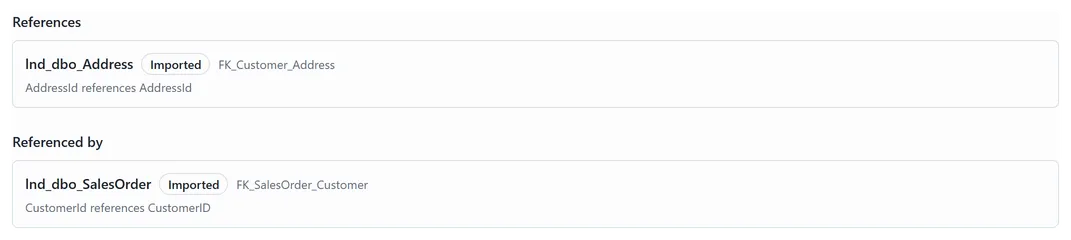 The two sections on a table that sits on both sides of a foreign key: it references lnd_dbo_Address, and lnd_dbo_SalesOrder references it. Each row names the table at the other end, the Imported badge, the source constraint name, and a line per column pair, with the edit and remove controls on the right.
Edit one column’s foreign key
Section titled “Edit one column’s foreign key”You do not have to leave the Columns grid to see or change what a single column references.
The grid carries a Reference column, off by default: open the column chooser and turn it on. It shows each column’s target as a chip naming the referenced table and column. Choose the chip and the Edit Column dialog opens on its Foreign key section.
The section states the reference as a sentence (this column references that table’s column), shows an Imported badge and the source Constraint name where there is one, and offers Referenced table and Referenced column pickers with Save reference and Clear. A column that references nothing says so and offers Add reference.
Two rules worth knowing before you edit:
- Changing the referenced column keeps the same relationship. Changing the referenced table is a different relationship, so DeltaVault asks before replacing the old one rather than overwriting it quietly.
- A foreign key that spans several columns is shown read-only, with an Edit relationship control that opens the full relationship editor. The columns of a composite key have to move together, and retargeting one leg on its own would break the join.
The foreign key controls save on their own. They are not part of the dialog’s Save, so changing a reference does not also commit an unrelated edit you were still thinking about.
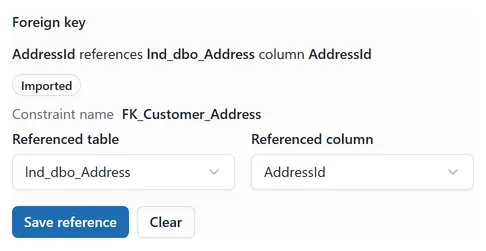 The Foreign key section for a single-column reference. The sentence states what this column references, the Imported badge and Constraint name record where it came from, and the two pickers retarget it. Save reference and Clear write on their own, separately from the dialog’s Save.
How imported foreign keys appear
Section titled “How imported foreign keys appear”An imported relationship carries an Imported badge, and where the source system named the constraint, that name is shown beside it on the Relationships tab and in the Edit Column dialog.
Re-importing a connection does not duplicate or renumber a relationship you already have. Where the source system names its constraints, those names are what DeltaVault matches on, so two foreign keys from one table to the same parent, a ship-to and a bill-to both pointing at an address table, stay two distinct relationships across every import.
Editing a reference by hand makes it yours. A later import that reports no foreign key on that column leaves your version alone, while imported references you have not touched refresh from the source as usual. If the source system does report a foreign key on that column, the import wins: the source is the authority on its own constraints.
How relationships are used
Section titled “How relationships are used”- View joins. When you create a view from the canvas, the related-table suggestions and the join key pairs are read from the relationships recorded on the tables. Better relationships mean fewer joins to correct by hand.
- Data Vault decomposition. Data Vault modeling reads relationships when it works out which tables are hubs and which are links, so a source schema with its foreign keys recorded decomposes closer to what you would have modeled yourself.
Troubleshooting
Section titled “Troubleshooting”“This column already references a different table.” The column you picked is already part of another foreign key, and one column can hold one reference. The message lists each column and what it currently references. Replace existing references and save clears those references and writes yours in their place. Nothing changes until you choose it, so read the list first: if one of the named columns should have kept its old target, change your column pairs instead.
“No tables in this catalog to relate to.” Relationship authoring stays inside one catalog and its owning connection. Nothing else in this catalog qualifies as a parent, so import or add the parent table into the same catalog first.
“Some relationships are not shown (over the 500 relationship limit).” The diagram is past what it can draw legibly. Open the table selector and prune the view, and the remaining relationships draw normally. Nothing is lost: the notice is about the diagram, not about your catalog.
A large scope asks before it draws. Above roughly 200 visible tables the catalog canvas shows the count and waits, with Open table selector and Render anyway. Prune first if you want a diagram you can read.