
Table details
The Details tab is a table’s home page. It opens by default when you select a table in the Catalog, on a project’s or workspace’s Catalog page, or in the canvas editor drawer, and gathers everything about the table in one place: the editable detail form and the table’s keys, with Suggest match in the table header and Ask AI in the top navigation.
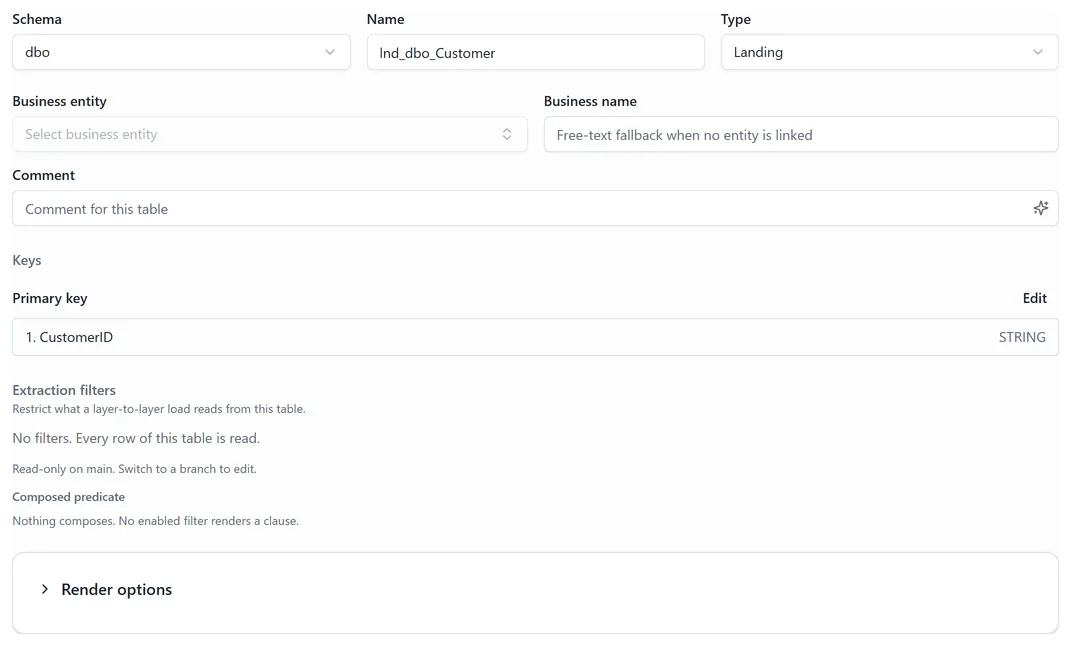 The Details tab: form fields, the Keys section, and the Suggest match header button.
Actions are grouped at the top of the panel: Save and Cancel come first, and Delete and Remove are in the three-dots (⋯) menu.
What lives on the Details tab
Section titled “What lives on the Details tab”Top to bottom:
- The detail form: Schema, Name, Type, Business entity, Business name, and Comment. Save applies your edits to the current branch.
- Keys: a read-only list of the table’s key columns.
The previous Overview tab has been merged into Details. Old links that pointed at Overview open Details automatically.
Schema, Name, and Type
Section titled “Schema, Name, and Type”The top row of the detail form controls where and how the table is identified in the Catalog.
Schema
Section titled “Schema”The Schema field is a picker grouped by connection and catalog. It shows every schema your organization has discovered or registered across all connections.
Choosing a schema under a different connection moves the table to that connection. When the move is committed, the table and all its columns re-home under the new connection, and their files relocate in the commit tree to reflect the new path. To move the table back, switch to the original schema and commit again.
The Name field is the table’s identifier within its schema. Renaming a table updates the Catalog entry on save; the file path in the commit tree is updated when the branch is committed.
The Type list is scoped to what is valid for the table’s layer and connection type. For example:
- Landing and staging layers offer Table, View, and Query.
- A file or cloud-storage connection offers only file types (such as Parquet File or Avro File).
Changing the type to one that is incompatible with the current connection is not permitted: the list filters the options automatically so only valid choices are shown.
Keys are derived from columns
Section titled “Keys are derived from columns”Tables don’t store their own primary or business keys. Keys belong to columns: flag a column as Primary key or Business key on the Columns tab, and the Details tab’s Keys section reflects it immediately. Templates and the Data Vault accelerator read the same flags, so what you see here is exactly what generation uses.
If the Keys section says no key columns are flagged, head to the Columns tab and set the flags there.
Business entity and business name
Section titled “Business entity and business name”Linking a table to a business entity records what the table represents in your business model. Pick the entity in the Details form: the picker searches your entities by name and technical name. When an entity is linked, its technical name is what downstream consumers (such as the Data Vault accelerator) will use as the table’s effective business name.
When no entity fits, use the free-text Business name field instead. If both are set, the linked entity’s technical name wins; the free text is the fallback.
Comment
Section titled “Comment”The Comment field holds a plain-text description of the table. It is stored as part of the table’s metadata and is included in YAML exports and AI context. You can write the comment by hand or let Enrich table metadata (under Ask AI) propose one.
The table also carries its own AI context field; skills that use ancestor context read it together with the project’s and the upstream tables’ context, as described in How AI context compounds.
Ask AI and Suggest match
Section titled “Ask AI and Suggest match”Suggest match sits in the table header row, visible from every tab on the table page. Ask AI is not a table-level button: it lives in the top navigation and picks the table up as context from your selection.
- Ask AI opens the AI pane with the selected table as context. Skills available there include:
- Enrich table metadata: proposes a comment, a business name, and a matching business entity for the table, shown as a preview you apply or discard.
- Analyze schema quality: reviews the table for naming, normalization, and missing-constraint issues.
- Analyze impact: assesses the downstream impact of changing a column.
- Suggest match searches for a business entity whose name or technical name fits this table and proposes a link. You review the suggestion before anything is saved.
Applying a proposal requires the editor role and a feature branch. Nothing touches the table until you apply.