
Assign templates per layer and entity type
The Templates tab on a project shows, at a glance, the template that every output kind renders with for the project’s target platform, and lets you assign or change those templates per layer, entity type, and orchestration artifact.
The target platform is not stated here
Section titled “The target platform is not stated here”The tab prints no target platform line, because it is the Templates tab and the platform belongs on the project Details tab. The platform still does its work: every picker narrows its options to the family of the project’s live target connection. Where a project has no live target connection, template resolution keeps matching the rules that apply to every platform instead of narrowing to one, and it says nothing about that either.
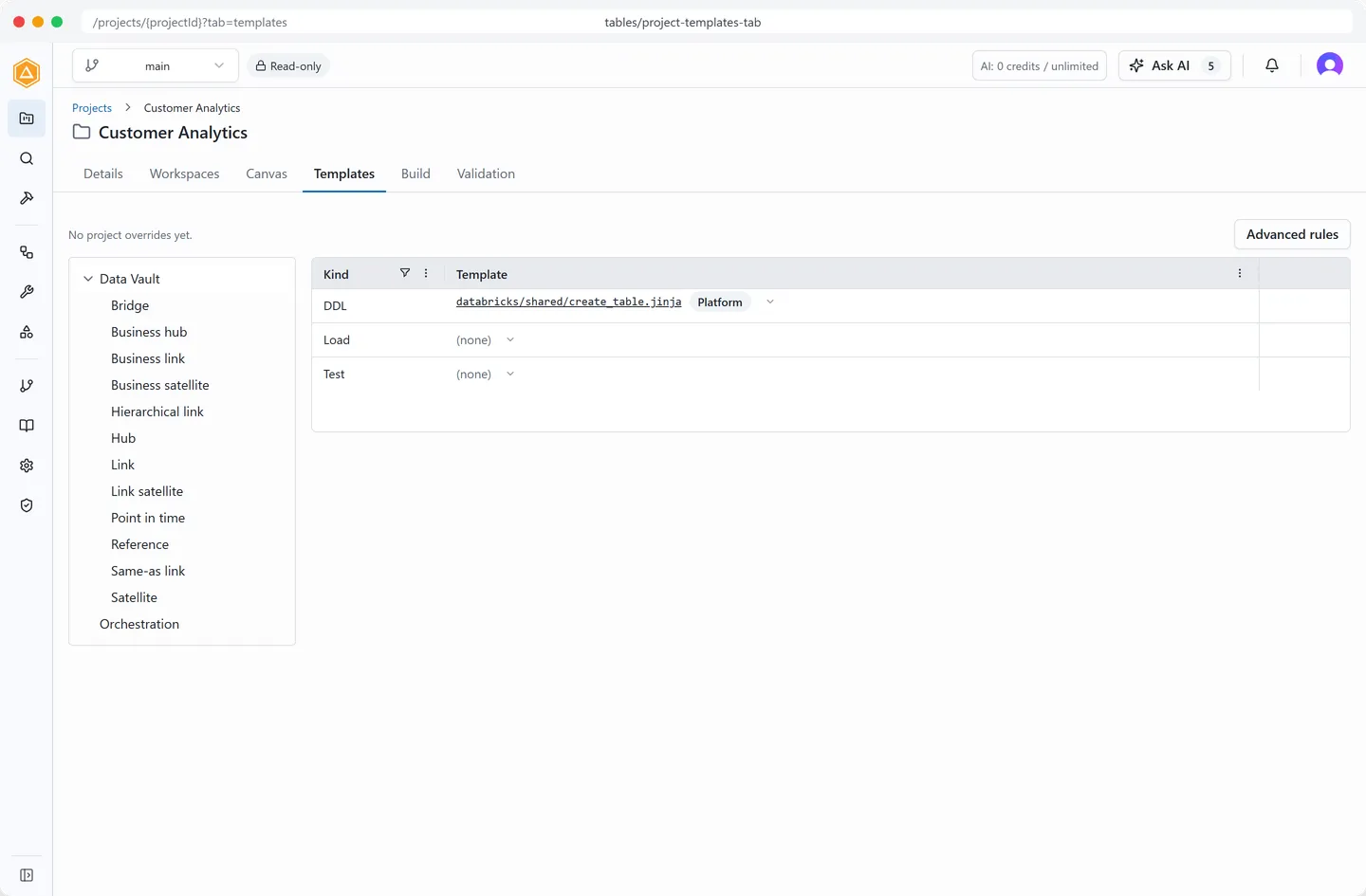 Layers and entity kinds on the left, the effective template for each output kind on the right.
Layers and entity kinds
Section titled “Layers and entity kinds”A tree on the left lists the project’s data layers in pipeline order: Landing, Staging, Persistent Staging, Data Warehouse, Data Vault, and Data Mart. A layer appears in the tree as soon as your project declares it, before any table in that layer exists, so you can assign templates ahead of building. The Source layer never appears: DeltaVault does not generate artifacts for source tables, so there is nothing to template there. When a project table carries no functional layer, a No layer bucket appears for it too.
Pick a data layer in the tree on the left. The grid on the right lists the project’s output kinds for that layer:
- DDL creates the table or view.
- Load populates it.
- Test validates it.
Orchestration artifacts
Section titled “Orchestration artifacts”The tree always includes an Orchestration node, last in the list and with no data layer of its own. Select it to see one row per orchestration artifact for the project’s target platform. For a Databricks target, the rows are Control notebook, Workflow definition, Pipeline resources, Bundle configuration, and Deploy workflow. For every other target platform, and for a project with no target platform set, the node shows a single Control notebook row.
Assign a template to any of these rows the same way you assign one to a layer or entity kind row: it writes a project-scoped rule for that artifact. Until you assign one, the build renders the target platform’s default template for that artifact. When you build the project, DeltaVault resolves the control notebook, and for Databricks every other orchestration artifact, from this same target-platform-scoped rule, so what you see on this tab is what the build renders.
Templates per entity type
Section titled “Templates per entity type”Some data layers hold more than one kind of object. Expand a layer in the tree to reveal every canonical entity kind it supports, whether or not the project has tables of that kind yet. The Data Vault layer, for example, always lists hub, link, satellite, and its other supported kinds, so you can assign templates before you have modeled a single table of that kind. Select an entity kind to see that kind’s effective templates, listed separately from the layer’s general rows.
A template assigned to an entity type wins over the layer’s general template for tables of that kind. A table whose kind has no entity-type rule of its own uses the layer template instead, which in turn falls back to the inherited organization or platform default.
Assign or change a template
Section titled “Assign or change a template”To set the template for a kind, layer, or orchestration artifact, open the picker on its row, the button whose accessible name is Change template, and choose a template. This creates a project-scoped rule for that row, so the scope badge on the row changes to This project.
To set a template for an entity type, expand the layer, select the entity type, and use the picker on its row the same way. The rule applies to tables of that kind only.
The same picker carries two choices that are easy to confuse, and they do different things. Revert to inherited deletes this project’s own rule for the row, so the row falls back to the organization or platform template; it is offered only while the project actually has a rule to delete. Do not generate is a decision rather than a removal: it records that this row should produce nothing at all. A row also carries a Revert button of its own in the grid.
Editing is available on a branch. On the main branch the picker is read-only; switch to a branch to make changes.
Table overrides
Section titled “Table overrides”When at least one table carries its own per-table template override, the Table overrides section lists each such table. Each entry shows the table name, the output kind, the linked template path, and a This table badge.
Per-table overrides are authored on an individual table’s Preview tab. Once set, the override appears here and takes the highest precedence for that table: it wins over the project, organization, and platform rules. To learn how to set or remove a per-table override, see Customize templates for a table.
Workflow overrides
Section titled “Workflow overrides”Where a workflow carries its own template choice, a Workflow overrides section lists it, each entry marked with a This workflow badge. It reads the same way as Table overrides above: a narrower scope than the project, recorded where you can see it rather than buried in the rule list.
Open a template
Section titled “Open a template”Select the template path link in any row to open that template in the Templates workbench, where you can read or edit its body.
Advanced rules
Section titled “Advanced rules”The Advanced rules button opens this project’s own custom binding rules in full, including rules scoped to a specific table type or carrying an explicit priority. Picking a template in the grid above is what creates one of these rules. The precedence is straightforward: a rule scoped to this project beats an organization-wide rule, which beats the platform’s built-in default.
Each rule shows proper-case labels for its layer and entity type, for example Data Vault and Hub, never the raw underlying names. Use the Entity type field to target a rule at a specific vault entity kind (hub, link, satellite, and so on); leave it as Any to match every entity kind.