
Define table keys
A table’s primary key, and on a staging table its business key, drive more than the Catalog: they are what the Data Vault accelerator hashes into hub and link keys, so getting the columns and their order right matters. This guide covers where keys live, how to edit the primary key with the key editor dialog, what happens when you change one, and the validation findings that keep keys and their generated hashes honest. The business key is set differently, as a single designated column; that flow has its own guide, Business key column.
What a key is in DeltaVault
Section titled “What a key is in DeltaVault”A primary key has two parts: which columns belong to it, and the order they combine in.
- Membership is the Primary Key switch you set on a column, either from the column’s own editor or from the key editor described below.
- Order is a separate, explicit setting you make in the key editor. It is what decides the sequence columns are concatenated in before hashing, which matters whenever a key has more than one column.
A business key works differently. Rather than flagging several columns and ordering them, a staging table carries one designated business-key column: a single column, plain or derived from several columns, that the Data Vault hub keys on. You set it from the same Details tab, and it has its own guide, Business key column. A table can carry both a primary key and a business key designation at once; they are independent. The rest of this page is about the primary key and the validation findings that cover both.
Open the key editor
Section titled “Open the key editor”Open a table and go to its Details tab. The Keys section shows the table’s Primary key as an ordered list, numbered in the order its columns combine in, with an Edit button that opens the key editor.
On a staging table, a Business key section sits below the primary key. It shows the single designated business-key column (or No business key designated when none is set) with an Add or Edit control. That control opens the designation dialog, covered in Business key column, not the key editor described here.
Until you save an order from the editor, a table’s primary-key columns are simply listed in the table’s own column order. Once you save an explicit order, that order sticks, and a column you flag afterwards from its own editor is added to the end of the list.
Pick and reorder columns
Section titled “Pick and reorder columns”The key editor’s column picker lists every column on the table, not only the ones already flagged, so you can add a new key column and place it in the order in one step instead of flagging it on the column editor first and coming back to reorder afterward. Checking a column adds it to the end of the order; unchecking removes it.
To change the order, either drag a row by the handle on its left, or use the up and down arrow buttons on its right. Both do the same thing: dragging is quick with a mouse, the buttons work from the keyboard.
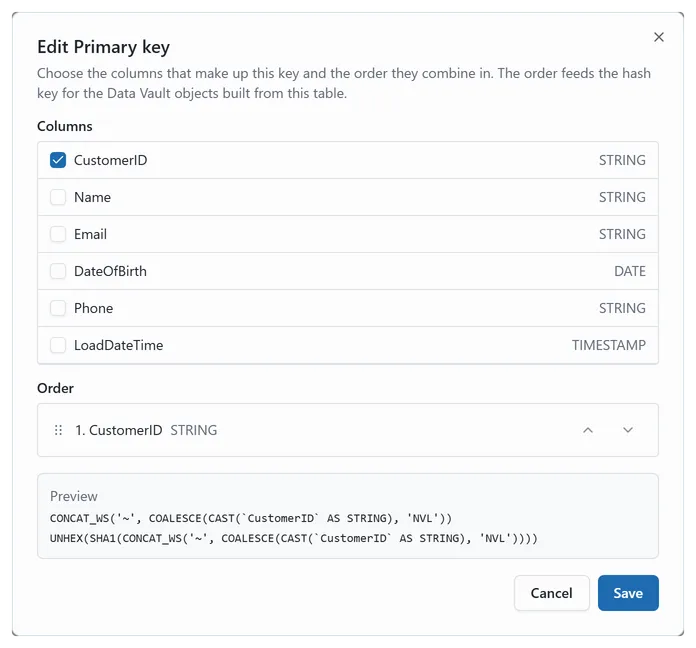 Edit Primary key: the columns chosen, the order they combine in, and the expressions that order produces.
See the exact hash before you save
Section titled “See the exact hash before you save”Below the ordered list, the dialog shows a live preview: the concatenation of your selected columns in your chosen order, and the full hash expression it produces. This preview runs the same code the Databricks staging generator uses, so what you see is exactly what gets built, not an approximation, and it updates as you pick and reorder columns.
Reorder consequences: the rehash warning
Section titled “Reorder consequences: the rehash warning”If the table already feeds a hub in an accelerated Data Vault model, changing the key’s membership or order shows a warning before you save:
Changing this key changes hash values for the Data Vault objects built from this table. Materialized vault tables will need a reload.
The warning also appears if you clear every column from a key that was already feeding the vault. DeltaVault does not reload materialized tables for you: reordering or changing a key in the editor only affects what future accelerations and renders produce, so plan the reload of anything already deployed yourself.
The warning only shows for the change you are actually making: editing a key that does not yet feed a Data Vault object, or saving without changing membership or order, shows no warning.
Foreign-key alignment and the validation findings
Section titled “Foreign-key alignment and the validation findings”When a table references another table with a multi-column key, for example a source table pointing at a hub-shaped parent, DeltaVault has to know which of the child’s columns lines up with which part of the parent’s key, in order, so the resulting hash values actually join. Three validation findings, all advisory (none of them block a commit), keep this honest:
- Foreign-key columns cannot be aligned to the referenced table’s key order fires when DeltaVault cannot line up every part of a referenced table’s key against the child’s columns. Rather than guess and risk a silently wrong hash, the finding names the referenced table and the detail of what it could not map, so you know exactly what to fix, whether that means setting a reference-column mapping or renaming a column so it matches.
- Key flags out of sync with the key definition fires when a column’s flags disagree with the table’s stored keys, for example after data arrives from a path outside the editors. It covers both keys at once: a primary-key column that disagrees with the stored order, and a business key whose designated column is not flagged, or that has more than one flagged column, or that points at a column which no longer exists. Repairing it rebuilds the primary key order from the current flags and re-syncs the business-key flags to the current designation, so re-saving the primary key editor and, where needed, re-opening the business key designation clears the finding.
- Vault-feeding staging table has no business key designation fires when a staging table that feeds the Data Vault has no designated business key. Note what it does not do: it stays quiet until a hub actually sources from the table. An earlier version of this finding fired on every table with a primary key and no business key, whether or not it was ever modeled, which left source, landing, staging and persistent-staging tables carrying a permanent advisory they could do nothing about. Designate a business key in the accelerator, or on the table Details tab, and it clears.
Where keys show up elsewhere
Section titled “Where keys show up elsewhere”The Columns tab grid marks each key column with a small badge. A primary-key column shows a plain PK badge and the designated business-key column a plain BK badge, neither of them numbered. Read the primary key order from the numbered list in the Keys section on the Details tab, which is where the order is edited. These badges are read-only: primary-key membership and order are edited in the column editor and the key editor, and the business key through its designation.
On the Data Vault modeling canvas, a hub node shows the business-key column it keys on, so the key you designate is the one you see downstream once a source table has been accelerated.